 Similar topic
IT Skills
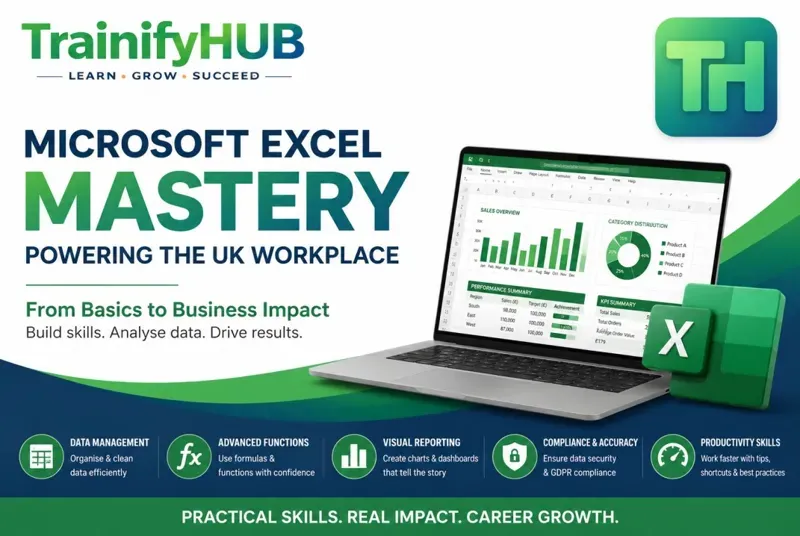
Microsoft Excel for Workplace Data Management, Reporting & Business Productivity
4.8(20)
11 modules2h98
GBP20.00
Build practical confidence across Microsoft 365 apps, collaboration and file sharing.
9
1h 54m
0+
beginner

Course Price
GBP 20.00
One-time payment - 9 months' access
Buying for your team?
Up to 30% off per seat: 10+ seats 10%, 25+ seats 20%, 50+ seats 30%.
CATEGORY
IT SkillsLAST UPDATED
Oct 2026
Course Price
GBP 20.00
One-time payment - 9 months' access
Buying for your team?
Up to 30% off per seat: 10+ seats 10%, 25+ seats 20%, 50+ seats 30%.
CATEGORY
IT SkillsLAST UPDATED
Oct 2026
Microsoft 365 Essentials provides a practical foundation across the everyday tools used in the Microsoft 365 workplace environment. Learners are introduced to Word, Excel, PowerPoint, Outlook, Teams, OneDrive and SharePoint, with a strong focus on creating work, communicating clearly, collaborating effectively, sharing files safely and using permissions appropriately.
No advanced technical knowledge is required. Access to a suitable Microsoft 365 environment is helpful for practice. Available features may differ by licence, platform, account type and organisational configuration.
Allow approximately 1 hour 54 minutes, including teaching videos, self-study activities and the final assessment.
Microsoft 365 brings together applications such as Word, Excel, PowerPoint, Outlook and Teams with cloud services such as OneDrive and SharePoint. Access to desktop apps, web apps, Copilot and other features depends on licence, deployment and organisational settings. Learners should understand how files and collaboration can move across apps without assuming every tenant has identical capabilities.
By the end of this module, learners will be able to:
✓ Understand Microsoft 365 as a collection of productivity, communication and storage services.
✓ Identify which application or service would be appropriate for drafting a document, analysing a small dataset, arranging a meeting and storing a shared team file.
Workplace application: Identify which application or service would be appropriate for drafting a document, analysing a small dataset, arranging a meeting and storing a shared team file.
Controlled boundaries
Do not claim every subscriber always has every feature or that software updates occur identically for every organisation. Update channels and admin controls can vary.
Learners create documents using appropriate styles/templates, save them to an approved location and use review features such as Track Changes when collaboration is needed. Cloud-saved documents can support link sharing and co-authoring where the organisation and licence permit it.
By the end of this module, learners will be able to:
✓ Create, review and share documents using core Word features.
✓ Create a short project report, apply headings, save it to the approved cloud location and share it with edit permission to a colleague.
Workplace application: Create a short project report, apply headings, save it to the approved cloud location and share it with edit permission to a colleague.
Controlled boundaries
Do not assume every document can be co-authored or that all desktop features are available in Word for the web. File type, permissions and version can affect behaviour.
A workbook contains worksheets, and cells are identified by row/column references such as A1. Basic formulas begin with = and can use operators and functions such as SUM. Formatting helps people read numbers, dates and headings, but learners should not mistake display formatting for changed underlying values.
By the end of this module, learners will be able to:
✓ Use basic Excel structure, formulas and formatting for simple workplace tasks.
✓ Create a simple monthly budget, calculate a total and apply suitable number formats.
Workplace application: Create a simple monthly budget, calculate a total and apply suitable number formats.
Controlled boundaries
Keep content introductory. Quick Analysis and recommendation features vary by version and platform and should be treated as optional aids rather than universal controls.
Use consistent themes and suitable slide layouts. Keep on-slide text concise, use visuals purposefully and check spelling/grammar before delivery. Presenter View and speaker notes can help a presenter while keeping the audience-facing slide uncluttered, where the selected platform supports them.
By the end of this module, learners will be able to:
✓ Create clear presentations using themes, layouts, visuals and delivery tools.
✓ Build a five-slide project update using a consistent theme, concise bullet points and speaker notes.
Workplace application: Build a five-slide project update using a consistent theme, concise bullet points and speaker notes.
Controlled boundaries
Avoid rigid universal rules such as one mandatory minimum font size for every presentation. Readability depends on venue, screen size and audience; use appropriately large, legible text.
Outlook supports email, calendar and organisational workflows. Learners should understand folders/search, meeting invitations and availability sharing where permitted. Copilot and delegated-access features can vary by licence, account type and administrator settings.
By the end of this module, learners will be able to:
✓ Manage email and calendar activity efficiently and appropriately.
✓ Create a meeting invitation with a clear subject, agenda and attendees, then review appropriate calendar-sharing permissions.
Workplace application: Create a meeting invitation with a clear subject, agenda and attendees, then review appropriate calendar-sharing permissions.
Controlled boundaries
Do not present a specific 'Share & Delegate' path or Copilot capability as universal across all Outlook versions. Use current organisational interface and permissions.
Chat supports direct or small-group conversation; teams/channels organise collaboration around shared work. Meeting controls can include audio/video settings, background options and recording where policy and permissions allow. AI-assisted recap, Copilot, Facilitator or Interpreter features are licence- and tenant-dependent and should be described only as optional examples.
By the end of this module, learners will be able to:
✓ Use Teams chat, channels and meetings appropriately.
✓ Choose whether three workplace communications belong in a direct chat, a channel post or a meeting, and explain why.
Workplace application: Choose whether three workplace communications belong in a direct chat, a channel post or a meeting, and explain why.
Controlled boundaries
Do not imply recording, AI recap or language features are available to every user. Follow organisational meeting-recording and privacy rules.
OneDrive is commonly used for an individual's work files; SharePoint supports organisational sites and shared content. Sync can make supported cloud files available through the local file system. Sharing permissions should be reviewed so recipients receive only the access they need.
By the end of this module, learners will be able to:
✓ Store, sync and share files using appropriate Microsoft 365 locations.
✓ Move a work document to the approved OneDrive location, share it with view-only permission and identify when a SharePoint team library would be more appropriate.
Workplace application: Move a work document to the approved OneDrive location, share it with view-only permission and identify when a SharePoint team library would be more appropriate.
Controlled boundaries
Do not promise offline availability, storage capacity or external sharing; these depend on sync settings, policies, licences and permissions.
Microsoft 365 brings together applications such as Word, Excel, PowerPoint, Outlook and Teams with cloud services such as OneDrive and SharePoint. Access to desktop apps, web apps, Copilot and other features depends on licence, deployment and organisational settings. Learners should understand how files and collaboration can move across apps without assuming every tenant has identical capabilities.
By the end of this module, learners will be able to:
✓ Apply safe, efficient habits across Microsoft 365.
✓ Run a pre-share checklist for a document: correct version, intended audience, permission level, sensitive content and final spelling/grammar review.
Workplace application: Identify which application or service would be appropriate for drafting a document, analysing a small dataset, arranging a meeting and storing a shared team file.
Controlled boundaries
Do not claim every subscriber always has every feature or that software updates occur identically for every organisation. Update channels and admin controls can vary.
This course is officially recognised and certified
CPD
Points Awarded
All accreditations are verified and recognised by relevant industry bodies. Upon successful completion, your certificate will display the appropriate accreditation marks.
14 questions answered
Workplace learners who want a practical foundation in Microsoft 365.
Word, Excel, PowerPoint, Outlook and Teams, plus OneDrive and SharePoint.
Yes.
Yes.
Yes.
Yes.
Yes.
Yes.
No. Feature availability can depend on licence, platform and organisational settings.
Yes. It contains 15 single-answer MCQs.
80%, equivalent to 12 correct answers out of 15.
Yes, a TrainifyHUB certificate of completion after successful completion.
No.
Allow approximately 1 hour 54 minutes, including teaching videos, self-study activities and the final assessment.
✓ Understand how Microsoft 365 apps and services fit together.
✓ Create and collaborate on documents in Word.
✓ Complete everyday spreadsheet tasks in Excel.
✓ Create clear PowerPoint presentations.
✓ Use Outlook for email, calendar and meeting organisation.
✓ Use Teams for chat, channels, meetings and collaboration.
✓ Store, sync and share files with OneDrive and SharePoint.
✓ Apply safe and efficient Microsoft 365 working practices.
Microsoft 365 is widely used for everyday workplace communication, document creation, meetings and file collaboration. This course helps learners use the core tools more confidently while recognising that some features depend on licence, platform and organisational settings.
On successful completion of the course and final assessment, learners will receive a TrainifyHUB certificate of completion. This does not imply Microsoft certification, external accreditation or professional competence.
0+
Students Enrolled
New
Be the first!
1h 54m
Total Duration


 CPD Accredited Provider
 Secure Payments
Our team can advise on the right training package for your organisation.
Keep learning
Picked from what learners take alongside this course.
Similar topicIT Skills
GBP20.00
 Similar topic
 Similar topic
 Similar topic
 Similar topic
Employability
GBP25.00
 More in IT Skills
 More in IT Skills
 More in IT Skills
Based on 0 reviews
You must be logged in to submit a review. Please log in or create an account.